Essential PPAC Settings for Copilot Studio
 By Craig White
To find PPAC settings for Copilot Studio, you’ll need access to the Power Platform Admin Centre – PPAC. For that, you’ll need the Power Platform, D365 or Global Administrator role(s) in your tenant.
Once in PPAC, navigate to Copilot, then Settings:
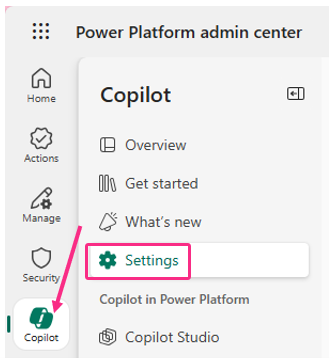
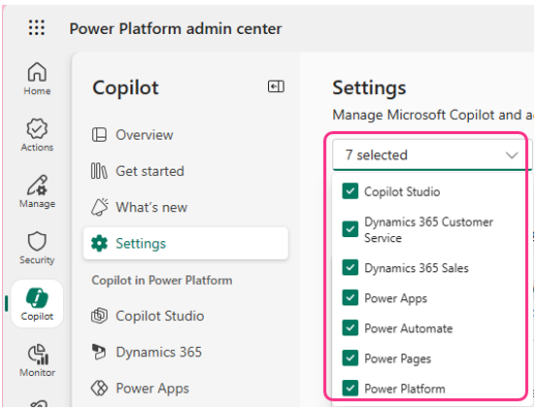
Settings for Copilot features across the Power Platform and D365 are grouped into the relevant product areas; Power Platform, Copilot Studio, Power Apps, Power Automate, Power Pages, D365 Customer Service and D365 Sales.
If you want to save endless scrolling, use the filter at the top to select specific area(s):
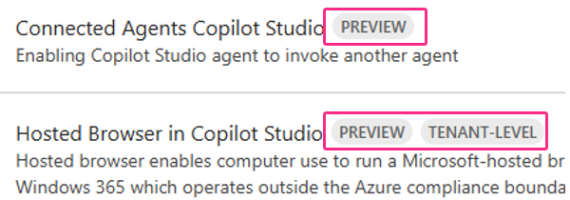
By default, you can apply each available setting at environment or environment group level. It will indicate if the setting applies to the whole tenant with ‘Tenant-Level’.
It’s worth also noting a similar experience for preview settings. These aren’t designed for production implementation until fully released by Microsoft. A good tip is to create a dedicated environment for Admins to evaluate such features in the meantime:
If you’re lucky enough to use Managed Environments in your organisation, you can apply settings once to a group of environments. You can use the ‘Environment groups’ option for each setting application.
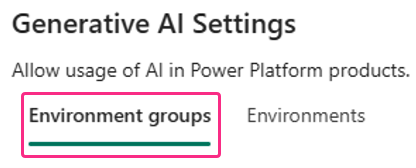
If you’re not that lucky, you’ll have to configure each environment separately and manually. There’s no multi-select option here, so best start praying you don’t have 000’s of environments that need settings applied to!
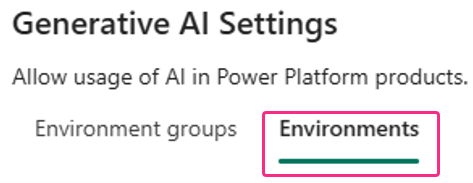
There are quite a few settings in here, some more important than others. Below are the ones I’ve been paying more attention to and recommend you do the same.
To begin the essential PPAC settings for Copilot – Copilot feedback. There are two settings in here, the second being quite important:
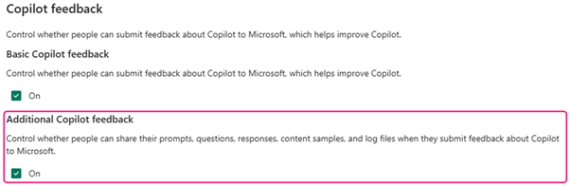
This allows anyone to send Copilot related prompts, responses, log files and more directly to Microsoft.
My immediate thoughts here is – be careful with leaving this setting on. What if makers are building agents that uses or processes sensitive information? What if they send this information, unfiltered, to Microsoft?
As this is tenant-wide, a better option might be to disable the second setting. Any feedback can be fed through a support ticket instead, so you can redact sensitive information first if needed. Sharing examples this way will enable you to have more control over what is sent to Microsoft.
These 2 settings aren’t reliant on each other; you can enable one but not the other if you wish.
There are a couple of PPAC settings here that may seem a bit scary. These hint that your company data may be processed outside of your Environment’s region, and/or your organisations compliance and geo boundaries.
With this being the Power Platform, these are obviously ON by default 🤣.
For context, data in this scenario means any AI-related inputs (for example, prompts) and any AI-related outputs (for example, results generated from prompts). Whilst Microsoft don’t use these inputs or outputs to train OpenAI models, the data is still being potentially passed around different data regions.
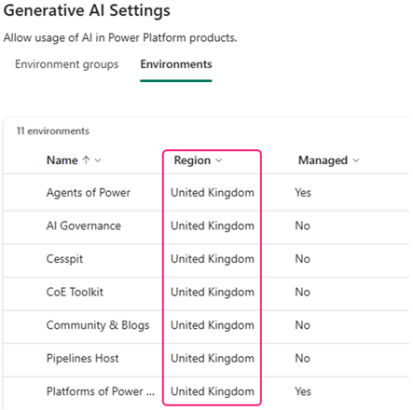
Clicking into the setting and selecting environments will show you their region. This is something you configure when you create an environment and not a setting you can change post-creation:
Microsoft’s documentation shows which region(s) may receive our Generative AI input and output data.
Therefore, if data being consumed by Generative AI features in the Power Platform should NOT leave your specific Environment region, best turn these off.
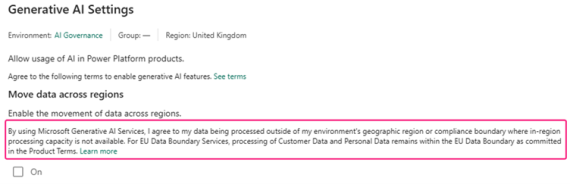
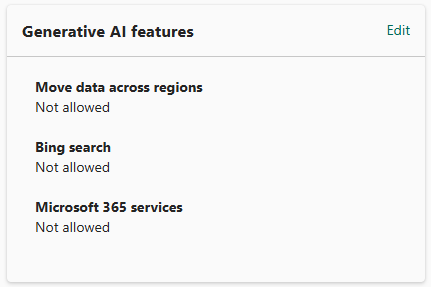
You can also access these settings via PPAC > Manage > Environments and selecting an environment. Please note they’re referenced as Generative AI features, not settings, but gives you the same 3 options:
Do you want all your makers to have access to all the latest AI models? Even preview and experimental ones?
This setting allows you to control what environment(s) will have access to these. As mentioned before, anything preview isn’t recommended for production use. Neither is anything experimental – both can be subject to change without notice.
A good balance here may be to allow more experienced makers to have access to these through their Developer environments. It can be good to compare model behaviour for AI-generated responses for accuracy, performance and other criteria. When newer models are stable, they’ll become the default model too, so it’s important to keep abreast of these changes and potential usage within your existing productionised AI-driven solutions.
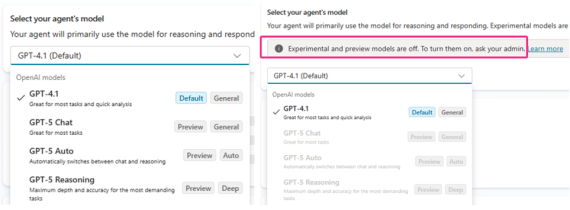
Turn this off for any environment(s) where you only want fully supported models to be in use:

The image below shows the Copilot Studio maker experience when you enable the setting (left) versus disabling the setting (right) in a chosen environment:
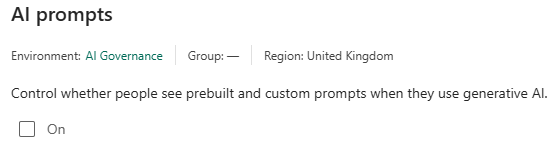
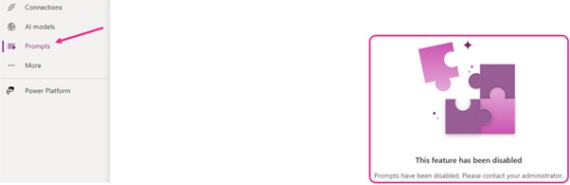
This determines if makers can see and use prebuilt or custom prompts in AI Builder. Being able to run custom or prebuilt prompts in your apps, flows or agents is very powerful, but such functionality might not be for every environment.
Custom prompts could easily drift away from your organisations intended standards or logic, especially when crafted by less experienced makers. Prompts might be bias, have poor instructions – and then there’s the data leakage considerations on top.
I personally LOVE using custom prompts to add some sparkling automation to my Power Platform solutions. I also appreciate these need to be well governed. Turning this one off per-environment allows just that:
Note though, turning this off means you cannot use any custom or prebuilt prompts, in any app, flow or agent.
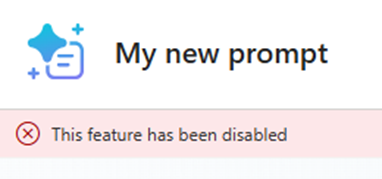
Also note the following experience in make.powerapps.com / make.powerautomate.com:
This allows your agents to use the latest Anthropic models in your Copilot Studio agents. Like xAI, this is another option to configure through the Microsoft 365 Admin Centre.
This is turned on by default for most commercial tenants now, but UK and EU must still opt in. Using an external AI sub-processor may involve cross-region data processing and breach lots of EU/UK compliance.
I’ll be blogging about Microsoft 365 settings for agents in more detail soon, but for now – for EU & UK tenants, I recommend ensuring these settings are off in M365 Admin > Copilot > Settings > Data access > AI providers operating as Microsoft subprocessors:
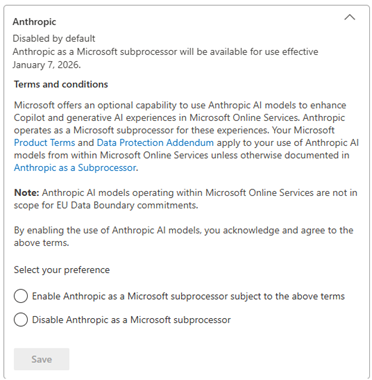
Disabling the above setting means you cannot do anything with the external models option in PPAC settings:

Therefore, you won’t be able to select any anthropic models in your Copilot Studio agent:
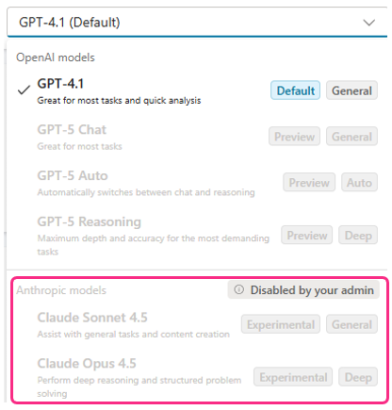
If you’re enabling external models but switch off preview & experimental models, you’ll only see Generally Available ones here.
Maybe another good candidate for an evaluation or innovation environment in your tenant, where you can allow this setting. Give access to a small, trusted group of users who will not process anything sensitive. This way they can collate feedback on the models and how they might enrich your agents in future.
With Copilot Cowork recently announced – and Claude generally being an absolute banger – I expect the UK/EU compliance issues to be resolved sooner rather than later.
This is the next generation of Robotic Process Automation. Computer Use allows your Copilot Studio agents to interact with websites and desktop applications, like a user would, to automate mundane tasks. This feature itself is currently in preview.
Going to configure this in PPAC provides a nice warning right away:
“AI automates interactions but may cause unintended actions that compromise device, data, or account security.”
What if the agent is poorly designed, misinterprets instructions or system settings change that confuse the agent. Once again, risks of leaking confidential data is a key focus too.
RPA, and now Computer Use remains a great candidate for segregated environments, as part of a wider environment strategy. Keep these developments ringfenced to experienced makers with dedicated dev/test/prod environments, licensing, monitoring and extensive testing & red teaming. I recommending keeping the setting on for any such environments and turn off for all others.
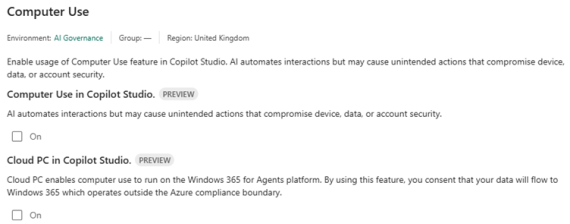
This is a tenant-level PPAC setting that controls whether Copilot Studio’s Computer Use feature (mentioned above) can run on a hosted browser powered by Windows 365.
As per the documentation, it’s not Microsoft Entra joined to your tenant and you can’t manage them with your Intune policies. It’s designed for quick web automation but doesn’t support enterprise resource access, custom desktop apps, or organisation-specific device management. Click here if you want to read more.
For organisations subject to GDPR, ISO 27001 etc, data processed under Windows 365 terms rather than Power Platform/Azure compliance is a meaningful distinction.
A strong candidate to disable unless, as with Computer Use, you have a specific use cases for using it.