Power Platform Advanced Connector Policies
 By Craig White
There are a couple of ways to access Advanced Connector Policies in the Power Platform Admin Centre:
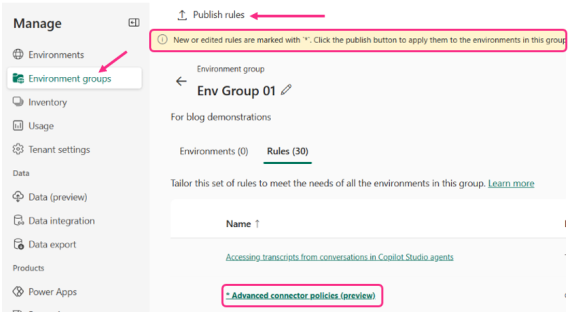
1- PPAC > Environment Groups > select an environment group > Rules

2- PPAC > Security > Data and Privacy. This is the same route we take to find the original Data Policy option.
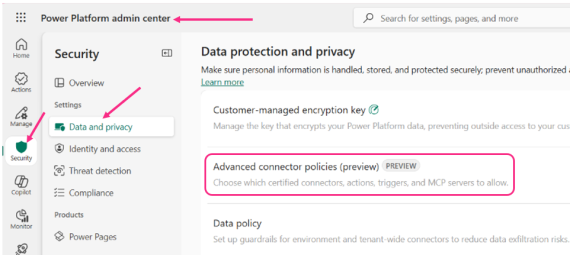
Either method of access will result in the following experience. By default, 24 connectors will be in the Allow list with the rest blocked. This initial list of allowed connectors are the ones listed as unblockable connectors for standard Data Policies:
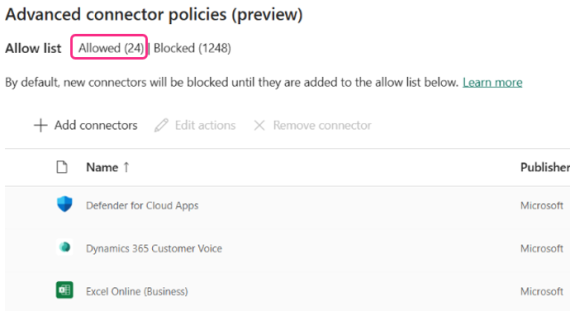
To add a connector, select the Add Connectors option. Find the connector(s), select then click Add Connectors. These will then move to the Allow list.
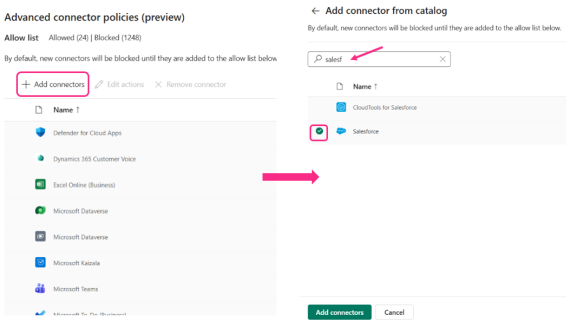
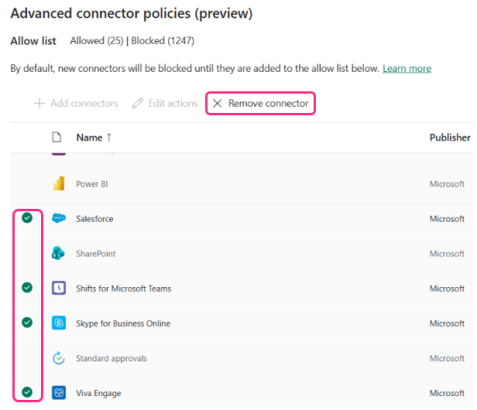
To remove / block a connector, simply select the connector(s) and click the Remove Connector option:
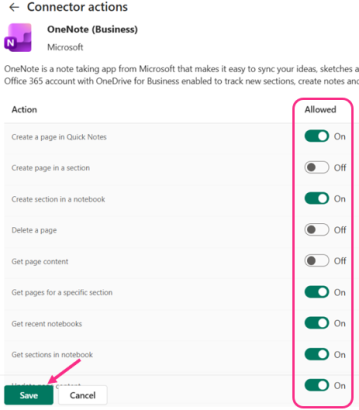
To edit what triggers and actions to allow or block, select the connector and click Edit actions. You can only do this for one connector at a time. Don’t forget to save once configured:
Once you have saved your Advanced Connector Policies, you’ll need to publish them for changes to take effect:
Following on from the point above, Advanced Connector Policies allow granular control of triggers and actions for both blockable AND unblockable connectors. This is something we can’t do with unblockable connectors in a standard DLP policy.
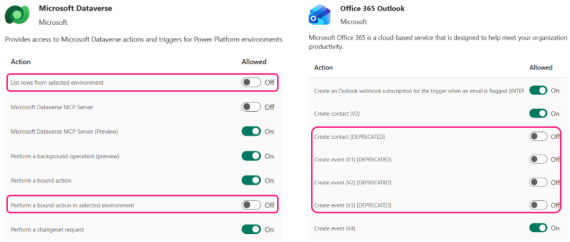
Examples of this include blocking the Dataverse MCP server from agents (if that’s your wish), or removing all deprecated actions from the Office 365 Outlook connector. One of my favourites to remove is any of the ‘from a selected environment’ actions in the Dataverse connector, or removing anything that’s preview or deprecated:
Whilst a standard data policy and ACP should work in tandem, it can take a while to see that in action.
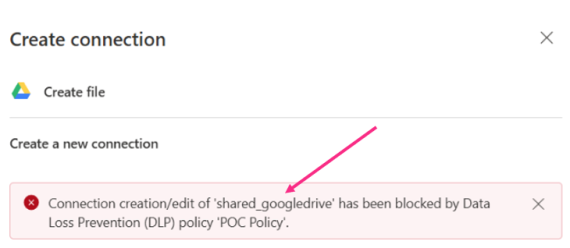
In my testing, I applied a standard Data Policy to an environment to block a connector. The impact was instant, not allowing me to add a blocked connector to a flow:
Adding some slightly different configuration to the same environment using an Advanced Connector Policy worked, but took several hours to take effect. Perhaps not the best experience or inspiring confidence.
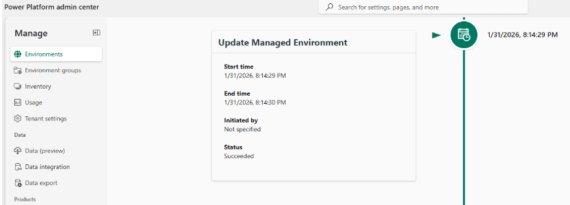
You can to some extent track the change (PPAC > Manage > select environment > History). Below I updated and published an ACP rule to the Environment Group governing the environment. The log isn’t granular but does track date/time:
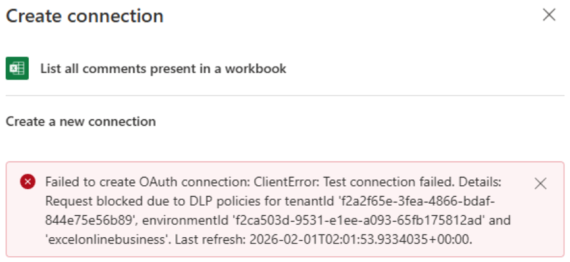
2 hours after that change, I could still build a flow using a connector I’d blocked. I had to wait until the following morning to finally see it working:
Maybe this could be a timing or data centre issue, but something to keep in mind.
As we can see from the above, error messages presented to the user are inconsistent too. A block caused by a standard Data Policy yields a cleaner message, even stating the Policy name that’s providing the block. This is going to be easy to send to IT Support to help unblock.
The message presented via an Advanced Connector Policy block is less user-friendly. Hopefully Microsoft can iron this out whilst it’s still in Preview.
During prep for this post, I noticed a difference in the number of connectors available to block in both policy methods.
A standard Data Policy has a higher number available to configure compared to Advanced Connector Policies (1,633 vs 1,281 at time of writing):

In the documentation, it states that Advanced Connector Policies only covers certified connectors. I’m not really sure what that means as, I thought, if the connector is available to use in the Power Platform, then it’s been certified for use?
What I have worked out so far (either with my own eyes or those in the Power Platform Admins Assemble WhatsApp group), the following are part of the missing numbers:
- Power Automate Desktop connectors
- The original Copilot Studio connectors
- Some of the Independent Publisher connectors – but not all
- No HTTP or When a HTTP Request is Received
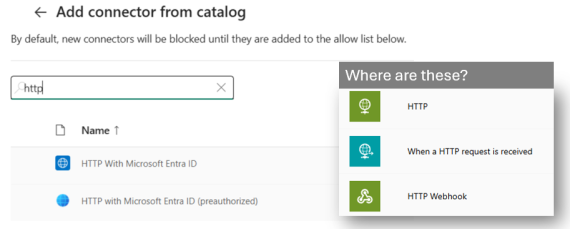
Which leads me onto the next point:
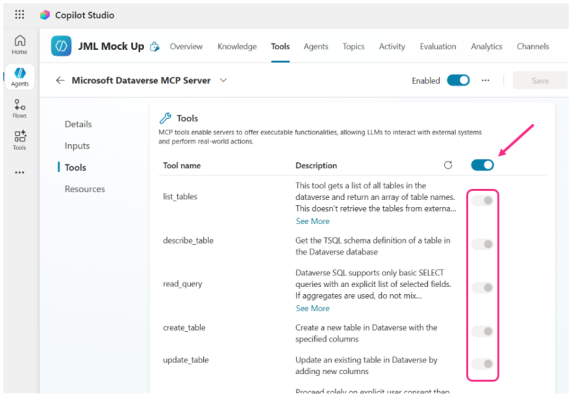
The Dataverse MCP Server action is part of the Dataverse connector. In an Advanced Connector Policy, we can allow or block it, but we can’t go a level deeper to allow or block what it can do when an agent uses it.
Currently, the only way we can do this is within Copilot Studio itself. When adding as a tool to an agent, the default is all actions are selected. Toggle to off to allow more granular control of what the agent can and can’t use.
This is on an agent-by-agent basis currently, there’s no global setting to do this per environment, for example.
I’m still trying to work out what these are, and what the impact is if they’re blocked.
As you can see from the example below for the SharePoint connector, there are 2 ‘Create item’ options. What is the [INTERNAL] one and what’s the impact if it’s blocked?
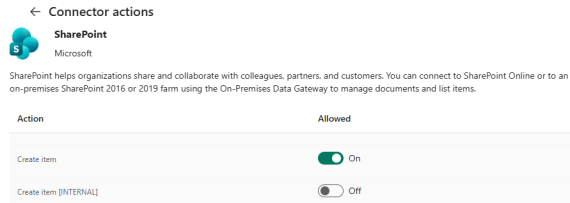
Something I’m still testing and will update this post when I’ve found out more. Other connectors have these ‘internal’ actions too, such as Dataverse and Microsoft Teams.
Advanced Connector Policies show encouraging signs for how we can manage Power Platform connectors in future. The cleaner and easier implementation, as well as control over any connector (and their triggers/actions) is a big win. Being able to use these against non-managed environments in future will also be a big plus, as hinted in the docs:

That said, if it were to go live tomorrow, standard Data Policies still represent the better option for me; quicker to take effect, full range of connectors, HTTP & custom connector config being the major plus points at present.
Have you played around with Advanced Connector Policies yet? What do you think of them compared to the existing Power Platform DLP policies option?
Thanks for reading. If you liked this article and want to receive more helpful tips about Power Platform / Agent governance, don’t forget to subscribe or follow me on socials 😊