Automating Copilot Studio Evaluations
 By Craig White
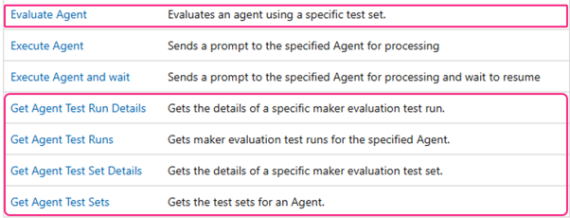
The Microsoft Copilot Studio connector is free to use in apps & flows, so no premium license required. At time of writing, the following actions are available for us to work with. For the purposes of Copilot Studio evaluations, this article focuses on the ones highlighted:
In this section, I’ll break down each of the related actions using Power Automate. To do so, you must be in the same environment as the agent(s) you want to work with.
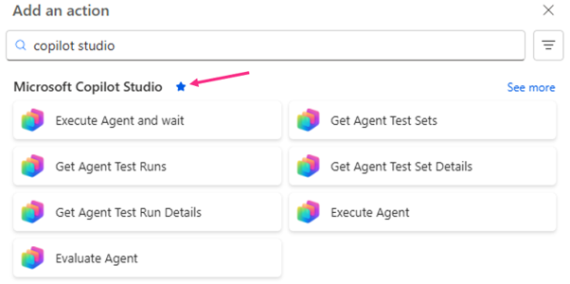
A good tip here: when working in the modern Power Automate designer, favourite the Microsoft Copilot Studio connector. It’ll make it much easier to find each time:
This seems like the logical one to start with. To get details of an agents’ test set, test set runs or to trigger a new automated evaluation, first you must retrieve the test sets.
The connector requires a single parameter; what agent do you want to get the test sets for. The dropdown will show you the list of available agents in the environment:

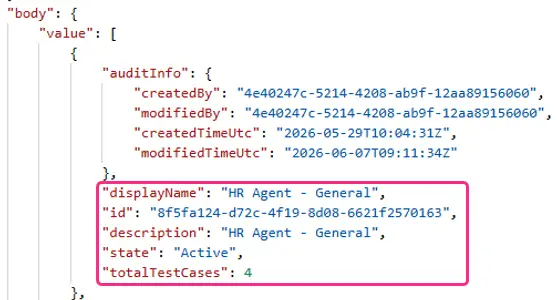
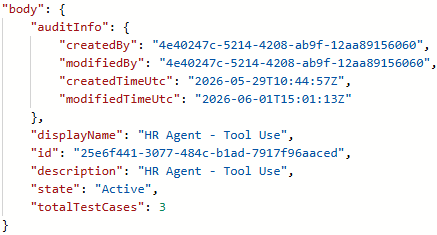
The body will list each evaluation present in the agent. For each one, we can see key information such as the name of the test set, its ID (which is useful for other actions) and the total number of test cases:
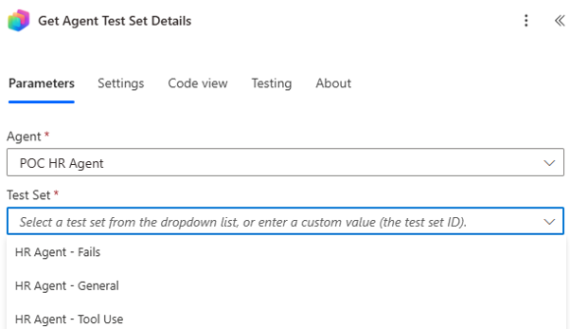
This action requires two parameters; the agent, and the relevant test set within the agent:
You don’t get any more information than you’d get from Get agent test sets. However, this is an important action if you want to jump straight to a specific evaluation. Outputs from this action will help with dynamically running the selected test set:
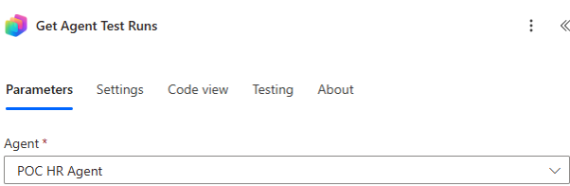
This pulls the history of all previous evaluations for the agent. Only one parameter needed and that’s the agent you want to pull the history for:
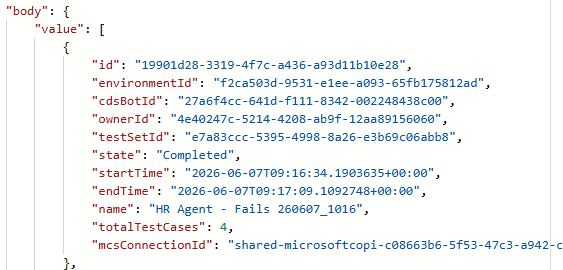
The body will contain an object for each historical run, including the test set name & id, when it was run and how many test cases were evaluated:
As per the documentation, evaluations are stored for 89 days. The output of this action could be quite large, even if you’ve cleared the decks in the agents’ UI.
I’ve also noticed that the delete option in the UI isn’t always 100% consistent. Sometimes it works first time and fully removes the run, other times you need to do this twice to get rid of it. So if you’ve deleted it in Copilot Studio but it still pops up in the response, delete it a second time!
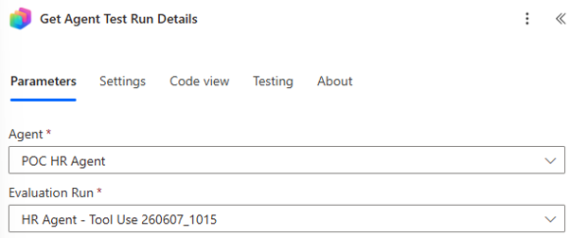
Use this action if you want to get the detailed responses from the evaluation run. The response breaks down all the test cases that were run and their outcomes. The action needs two parameters; the agent and a specific historic evaluation run:
This is where things get a bit more variable, as the outputs will depend on what method(s) you’re using for each test set. If you want to work with the outputs for automated processes (such as pipeline deployment), it will be important for you to understand the differences. This will allow you to interpret what configuration you need.
Some examples below as to the differences you can expect.
General method
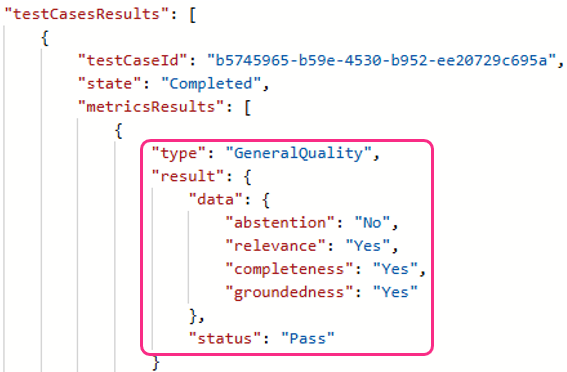
Each test case in the test set will have its own nested object in the JSON output. There’s no clear indicator as to which question the response is for; the only identifier here is testCaseId. However, you do see the important aspects such as type, what from the response has been analysed (high level) and possibly the most important part, the pass or fail status:
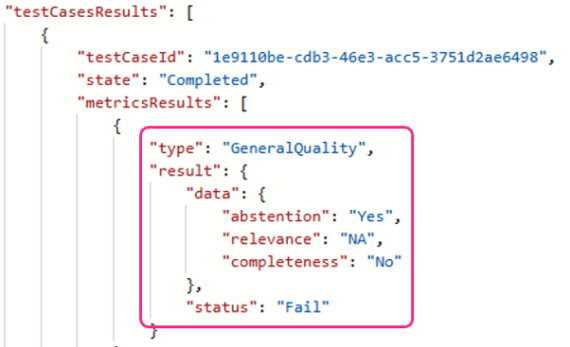
It’s worth noting that data in the results may vary for quantity. I ran my test set that should purposely fail (asking the agent dumb questions that shouldn’t be answered), in this example groundedness doesn’t appear:
Tool use method
Similarly, each test case has its own nested object in the output. We see the presence of a status (pass/fail) again, but the data is different:
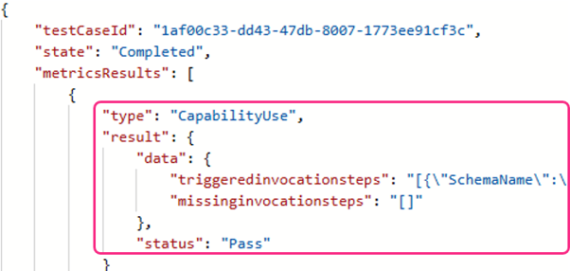
The tool use method tests whether a user input calls a tool or topic. If you want to know which entry related to what, you need the information inside triggeredinvocationsteps.
Example for a tool:
Keyword method
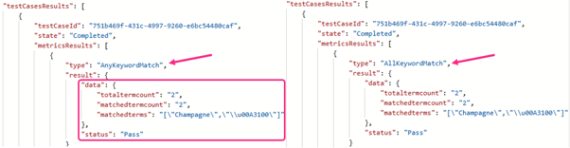
Same again, each test case will have its own entry in the outputs. With this method, it shows how many terms are present, how many matched & which terms matched during the evaluation.
A small detail here is the keyword method type. When creating this evaluation type, you can opt for any or all keyword matches. This is represented in the outputs:
Custom method
The outputs here will include a reference to how you’ve set up the custom evaluation. In this Borat-inspired example, I’ve chosen the ‘High Five’ label for a pass and ‘King of the Castle’ for a fail:

Querying a custom evaluation with the Get agent test run details action, we can see the relevant label shown. Luckily under the hood, the pass or fail status output is consistent with the others:

Compare method
You’ll set these test sets up using a percentage-based quality threshold to determine a pass or fail:
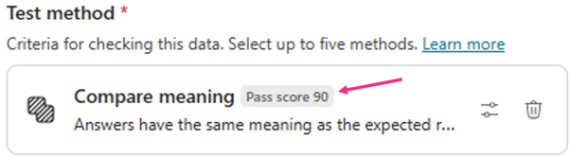
The target pass score isn’t represented in the outputs for the action, but the actual evaluation score is. Once again, consistent status output the same as others:
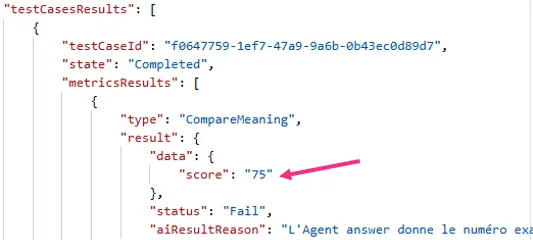
Also, look closely at the aiResultReason text – why is it responding in French? 😆 I literally have no idea, but there we go. #AIWillNotTakeYourJob
Key takeaway
What stands out the most is the consistent Pass or Fail status for each output, regardless of method. Thinking ahead, this is going to be useful if I want to automate deployments based on the success or failure of evaluations.
This action enables us to kick off an automated evaluation run. We must specify what agent and test set we want to evaluate:
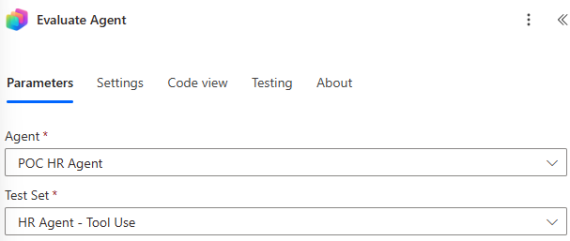
One of the optional parameters is giving the automated run an evaluation run name. This is how it’ll appear in the Evaluation section within Copilot Studio.
My advise here is to ensure the name is always unique. When running these manually, they’re all given a unique name:
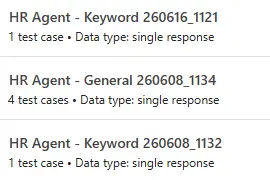
If automating these, try to do the same else it’s difficult to see what was run and when:
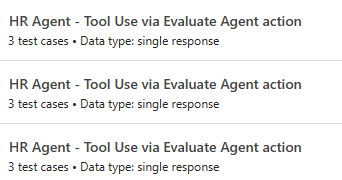
You could add a simple formatting function to the property if you want to mimic Microsoft’s default naming approach:

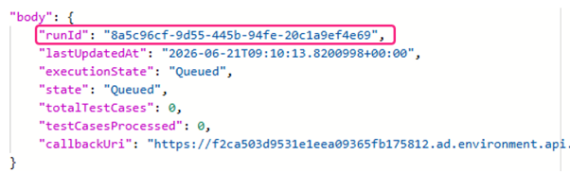
The response from the Evaluate Agent action is quite limited. The key piece we can extract is the runId:
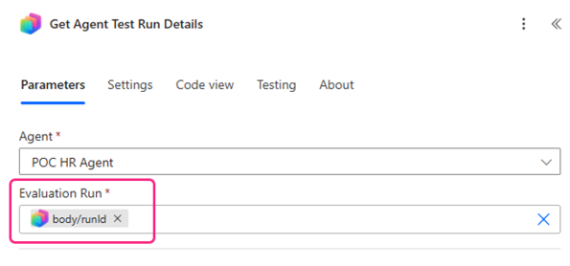
To get the more granular details of the run, use the runId value from the Evaluate Agent action in the Evaluation Run property of the Get Agent Test Run Details action:
The Evaluate Agent / Get Agent Test Run Details combo works, but you’ll need to add a Do Until loop in between.
When you start an evaluation it’ll queue, then be in progress for a while before it’s completed. Ideally then, we only want to get the test run details once the evaluation has finished because doing so before gives us empty results. Note the state of ‘Queued’:

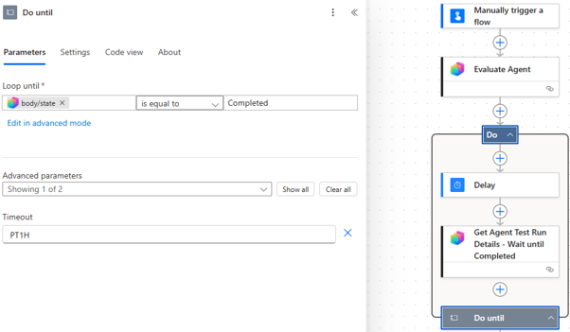
Adding a Do Until loop between the 2 actions means we can keep polling the evaluation until it’s completed. Then, we’ll be able to get the details of the run and the pass/fail of its test cases.
In the example below, I’ve added the following:
- A Do Until loop
- A Delay step set to 30 seconds. This is to reduce endless calls that might hit throttling limits
- A Get Agent Test Run Details action, using the runId from the Evaluate Agent action
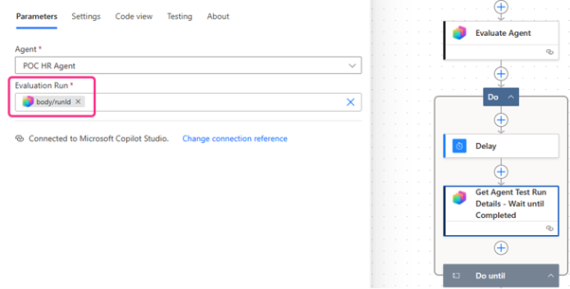
For the Loop until property in the Do Until action, I’m using the state output from the Get Agent Test Run Details action:
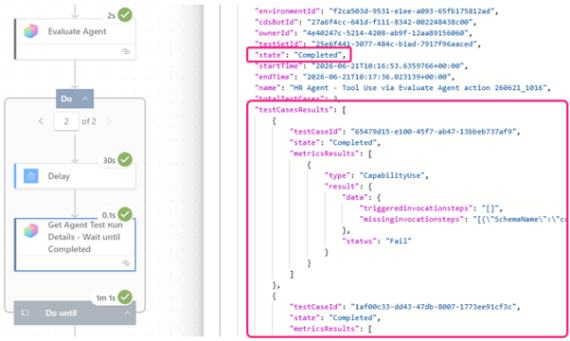
Sweet, we now get the results in the same workflow:
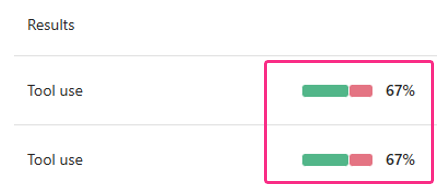
We can extend this further and add some real-time calculations or outputs. We get these if running the evaluations from within the agent, so need the same experience if automating the evaluation from elsewhere:
Some simple logic can be added to a Power Automate flow to do the following:
- Filter the testCasesResults nested object within the Get Agent Test Run Details response, where status = Pass
- Count the number of rows in the returned filter
- Get the total number of test cases within the test set
- Calculate a percentage
We’d also like to do this without adding endless For Each actions, because noone is about that life at all.
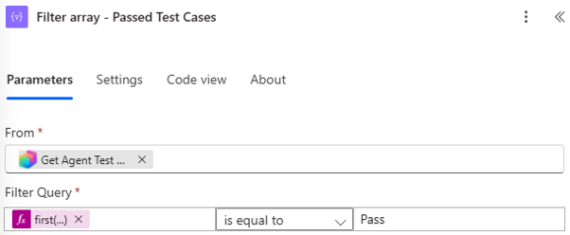
To begin, add a Filter array action. The array to filter is the body/testCasesResults output from the Get Agent Test Run Details action. In the filter query, we need the status value for each test case. Use the following expression:
Then, ensure you are filtering only for test cases that have passed:
Next, use a Compose action to count how many records are in that filtered array. Add the following expression:
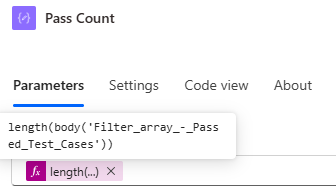
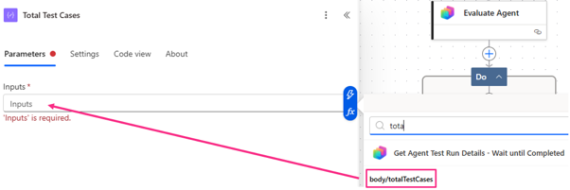
To compare the number of passes against the total number of questions in the test set, we need to extract the totalTestCases value. For simplicity and following the flow of numbers, you can choose to add this value into another Compose action:
Lastly, using another Compose action we can compare Pass Count to Total Test Cases to determine a success percentage:
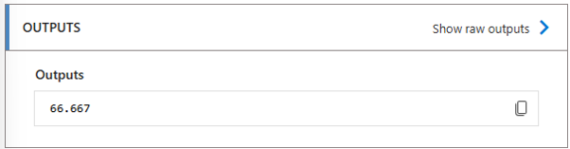
You could extend this further with conditions or other logic. For example, if Output > 60, promote solution to next environment, else don’t.
You may need to consider your Power Platform DLP posture if using either of these methods within the Power Platform tools.
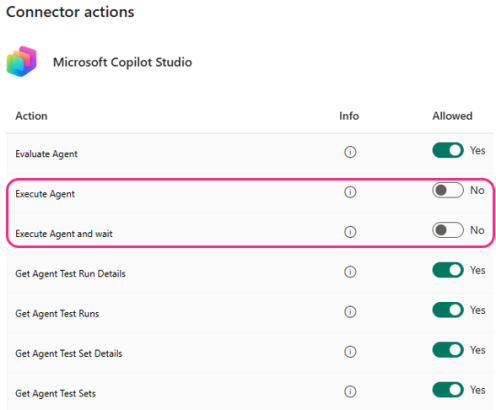
The Microsoft Copilot Studio connector is blockable in DLP policies (both classic and via Advanced Connector Policies). I am seeing more orgs block this as they don’t want people to build and share autonomous agents, but doing so means you can’t run evaluations – manually or automated.
My recommendation here is have agent-specific environments with a dedicated DLP policy. This way you can allow the connector for use against your agent activity. You can even use action-level controls to disable the autonomous actions if you wish:
If you’re going for the Power Platform API approach using either a custom connector or the HTTP action, again you must make sure your DLP policies support this if you have endpoint filtering enabled.